

Working Non-Destructively With Smart Objects
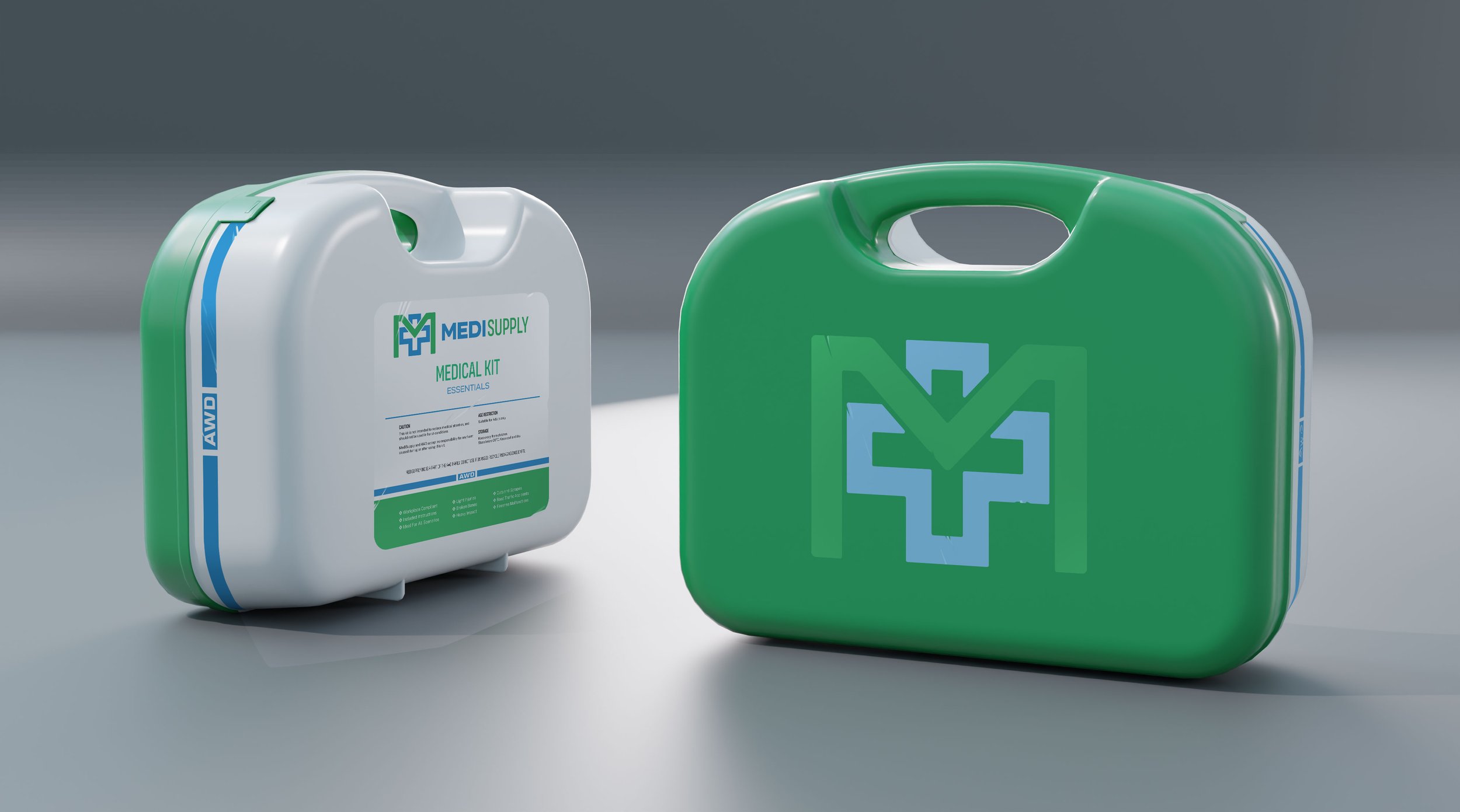
We've been working on some packaging for the medical pick ups in Project S, and I wanted to share a workflow tip for this kind of graphic design/mockup work. The idea is to use Smart Objects and Linked Files to work in a non-destructive way, giving you as much future flexibility as possible.
What are Smart Objects and Linked Files?
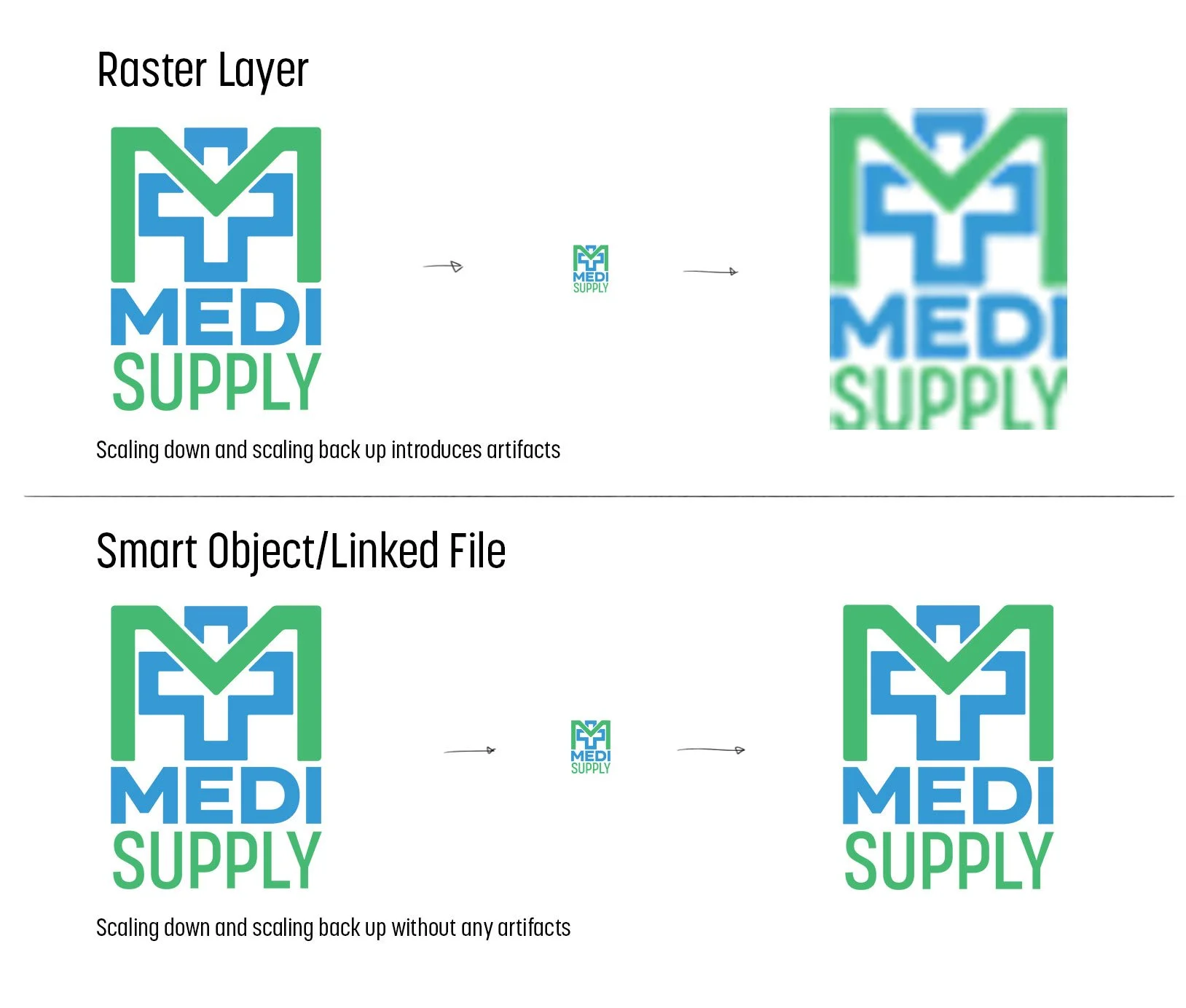
Photoshop is raster image software, where images are made of individual pixels (as opposed to vector, where the images are defined by maths and curves). If you've ever been up close with a poster and spotted the pixels, or seen an incredibly "deep fried" meme, those are the side effects of raster images. There are only so many pixels in an image, so if it is scaled up past it’s original size, artifacts start to be introduced.
Smart Objects are a way to circumvent some of these restrictions whilst working in Photoshop. Making layers into a Smart Object (Layer>Smart Object>Convert to Smart Object) essentially encapsulates those layers in a new photoshop document which is embedded inside your existing file. You can then scale it down and back up without losing detail, as well as adding all kinds of different layer adjustments and filters in a non-destructive way.
What are the use cases for Smart Objects and Linked Files
Incorporating 2D assets in mockups and illustrations
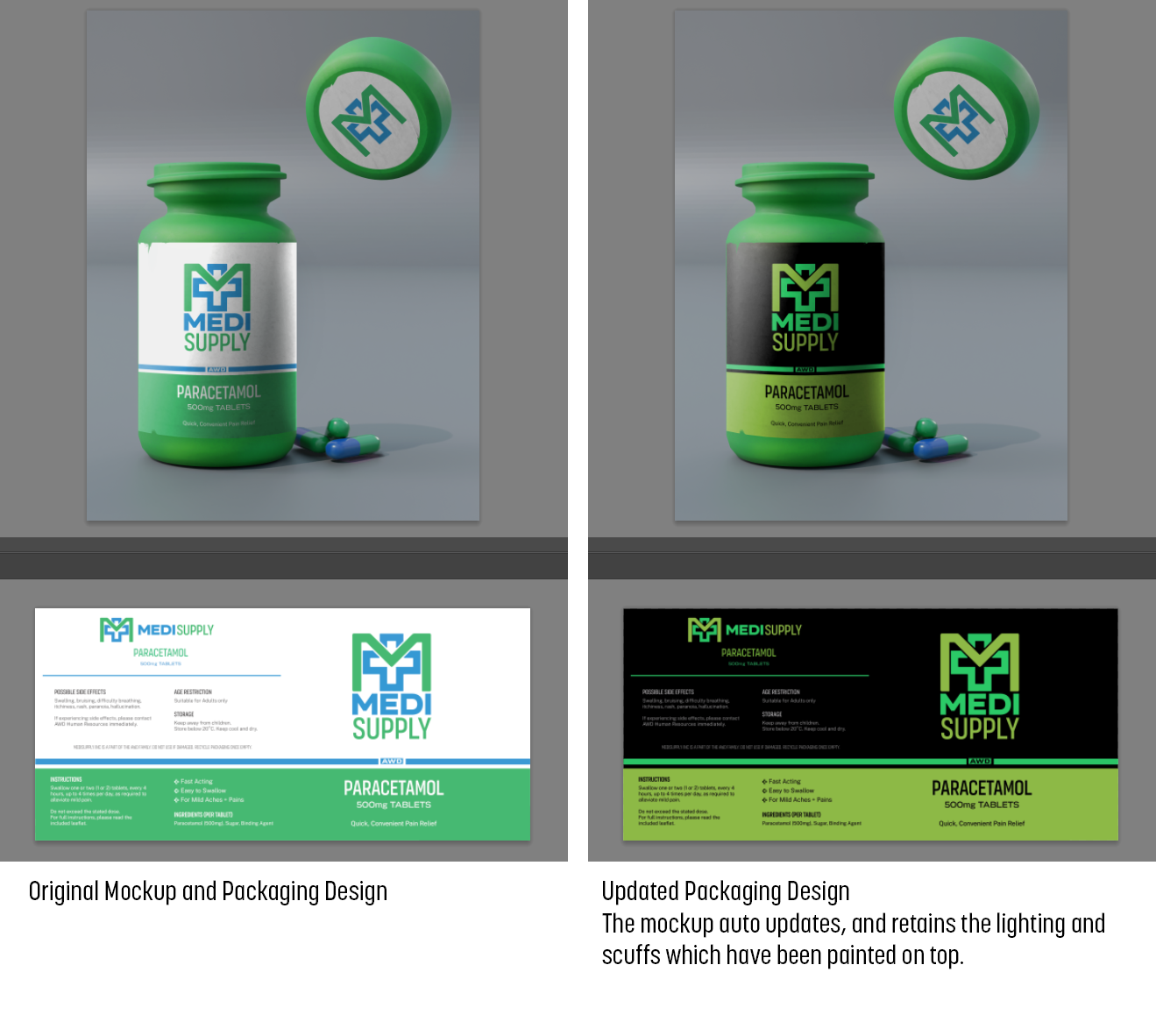
Some elements of concept art are much easier to work on as flat images. Whether that's packaging, billboards, tattoo designs or vehicle liveries, designing them as flat objects and then warping them into position non-destructively is much more forgiving than trying to design them in-situ. This is especially true if the 2D design will eventually become an in game asset. Using Smart Objects means that you have a nice clean image which can be handed off to the next person in the pipeline, rather than someone having to try and de-perspective the billboard further down the line.
It also allows you to quickly update the asset in future, whilst preserving all of the transforms and any extra work that has been done on top.
Making something smaller without losing detail
Sometimes you have created an asset (whether that's a 2D graphic, a character, or something else), and need to place it in the background of an image, but don't want to lose all of the work that went into it. Converting the asset to a Smart Object before scaling it down means that if it needs to be moved again in future, you can scale it back up without ending up with a pixelly mess.
Using the same asset in multiple places? Use Linked Files
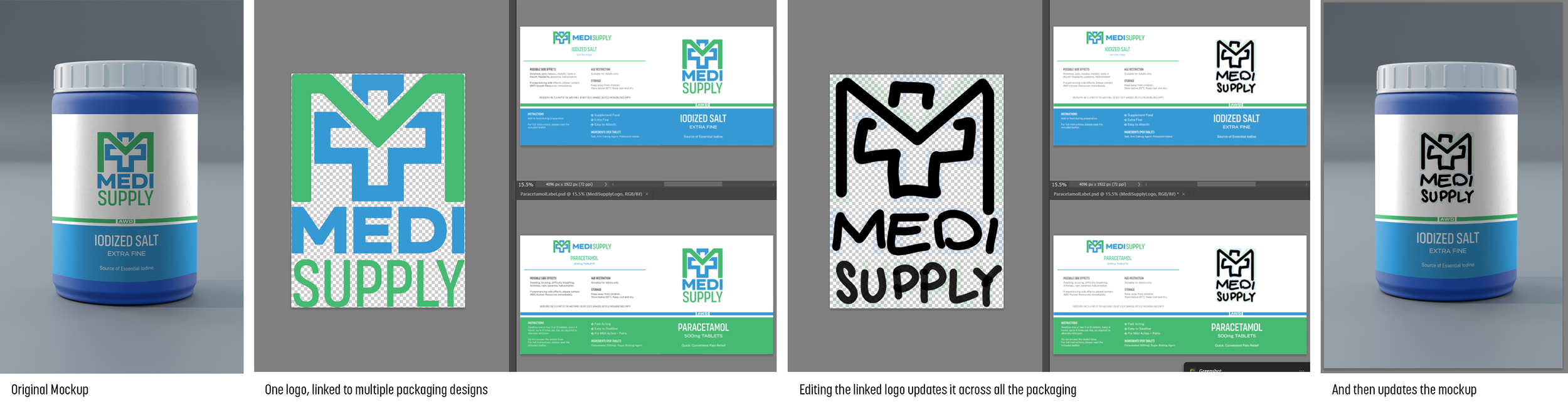
Linked files work the same way as Smart Objects, only rather than living inside the original PSD, they have a specific location on your computer. Programs like InDesign and AfterEffects work like this by default - but it can be equally useful in Photoshop. For example, whilst working on these packaging designs, I was using the same MediSupply logo on each one. Designing the logo first, and then inserting it as a Linked File (File>Place Linked) meant that if I made any updates to the logo, it would propagate across all the packaging designs, and then across all of the mockups (as long as I opened the files again)
Conclusion
Hopefully this has been useful! We’ve also put together a video going through all of these techniques in a bit more detail, give it a watch if you’re interested. I think Smart Objects and Linked Files can be overlooked when trying to work quickly in Photoshop, but if you implement them into your workflow, you can save time for yourself and the rest of your team. They lend themselves especially well to 2D/graphic design tasks, but the ability to non-destructively tweak layer adjustments like hue/saturation, liquify and perspective warp makes them incredibly powerful for a wide range of tasks. Although your files might balloon in size - you have been warned!
